Reviews from Automatic Reviewer not Appearing in Review Hub
Automatic Reviews created through a state transition utilize an older review system that is separate from Review HUB. The old review system must be enabled through Application Configuration in the System Admin Tab. 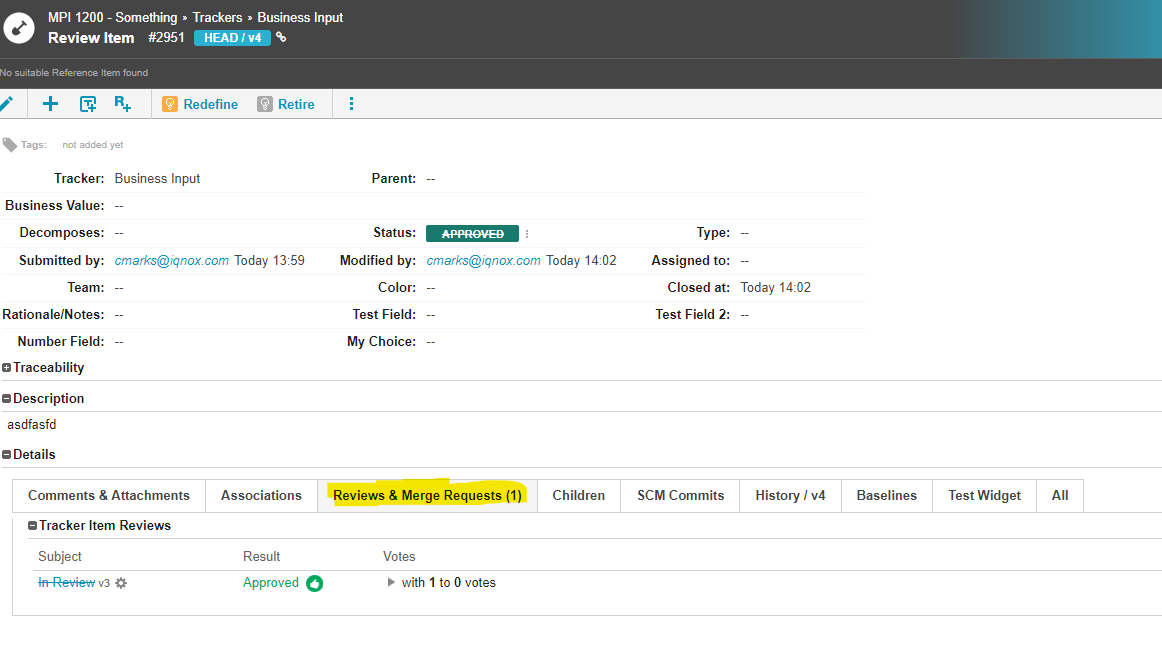
  "review" : {
     "hideTrackerItemReview" : false
   }
The reviews will show up in the tracker items themselves in their respective Reviews tab.
Our recommendation is to use the Review HUB system instead which unfortunately can not be triggered automatically through state transitions, but has other benefits such as notifications and more collaboration features.
Related Articles
Review Hub
This process aims to automate placing items into their "Approved or Draft" state upon review completion for the Streamlined Review Process. These items must be in the "In Review" state when users send items to Review HUB for review. In the Review Hub ...Time in Review Report (UC - 7)
This can be used to build metadata to calculate the length of time an item stays in the Review state for Time in Review Report. Used By: - System Administrator General User Steps to run the Time in Review Report: - Login to Arthrex using the URL ... ...ReviewHub Listener 2.0.0
ReviewHub User required role Permissions: In the the project, ensure the review hub service role has the permission to view members and roles. Navigate to the project, then Admin > Members > ReviewHubService and make sure Members - View and Role - ...Draft to Approval Report (UC - 2)
This can be used to build metadata to calculate the Length of Time from Draft to Approval for the Length of Time Draft to Approval Report. Used By: - System Administrator General User Steps to run the Draft to Approval Report: - Login to Arthrex ...Content Rejection Report (UC -1)
UC-1 Content Rejection Report This can be used to build metadata to track the number of iterations for the Content Rejection Report. Used By: - System Administrator General User Steps to run the Content Rejection Report: - Login to Arthrex using the ...