Time in Review Report (UC - 7)
This can be used to build metadata to calculate the length of time an item stays in the Review state for Time in Review Report.
Used By: -
System Administrator
General User
Steps to run the Time in Review Report: -
Login to Arthrex using the URL ...
Go to the Reports tab.
Go to the Search bar and search for Time in Review Report.
Here, you will find two versions of the report, Project-specific and System-specific reports.
Project-specific reports can be run for a particular project.
System-specific reports can be run across all projects in the system.
To run the project-specific report, select the project-specific report.
It will open a new window, where you can select the project for which you want to run the report and click Yes.
You will see the reports open in the new window.
There will be 3 columns in the report: - Summary, Status, and Time in Review (hidden field).
Steps to configure the Time in Review Report: -
Go to the Projects tab and select the Project "Arthrex Template 2".
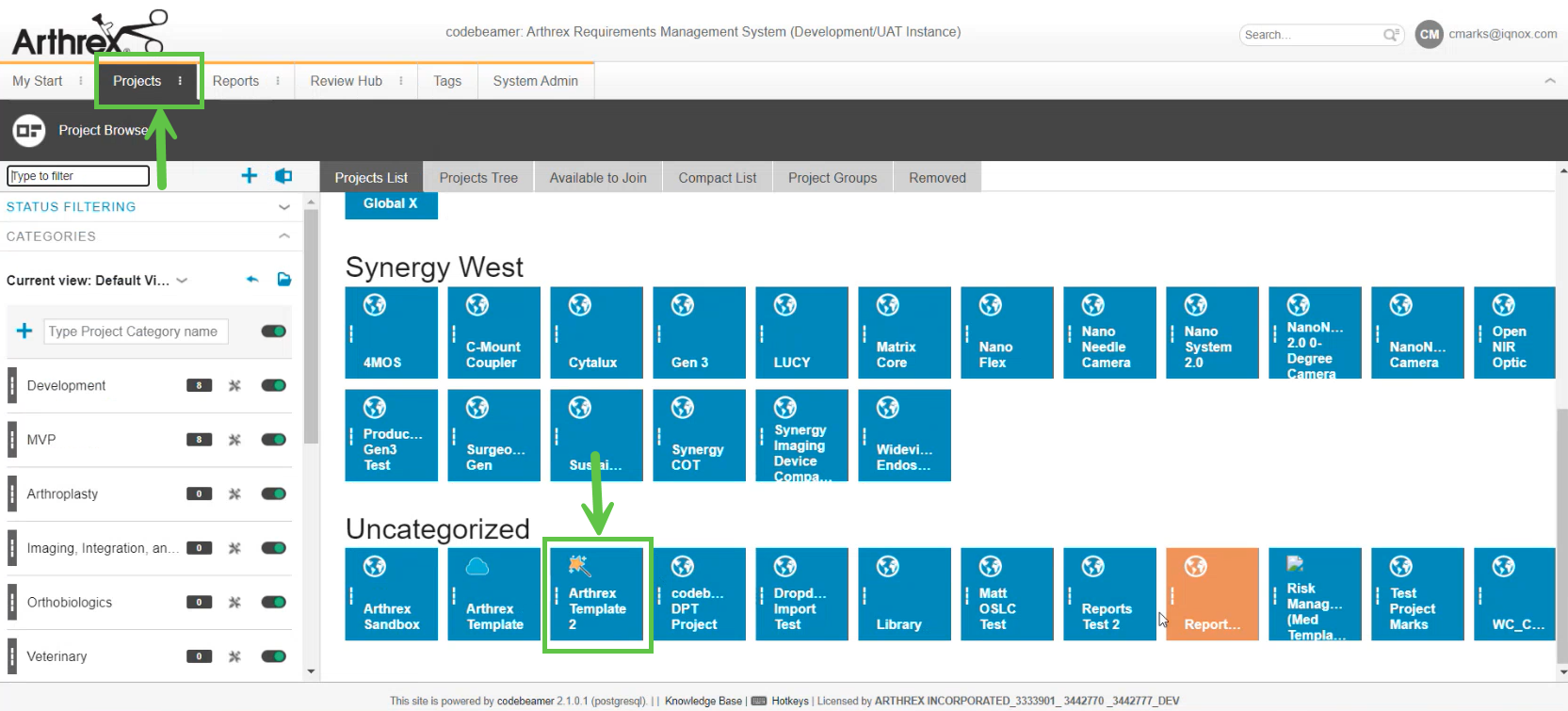
Go to the Trackers tab.
Select a tracker under the Trackers tab. Right-click on one of the trackers and select Configure.
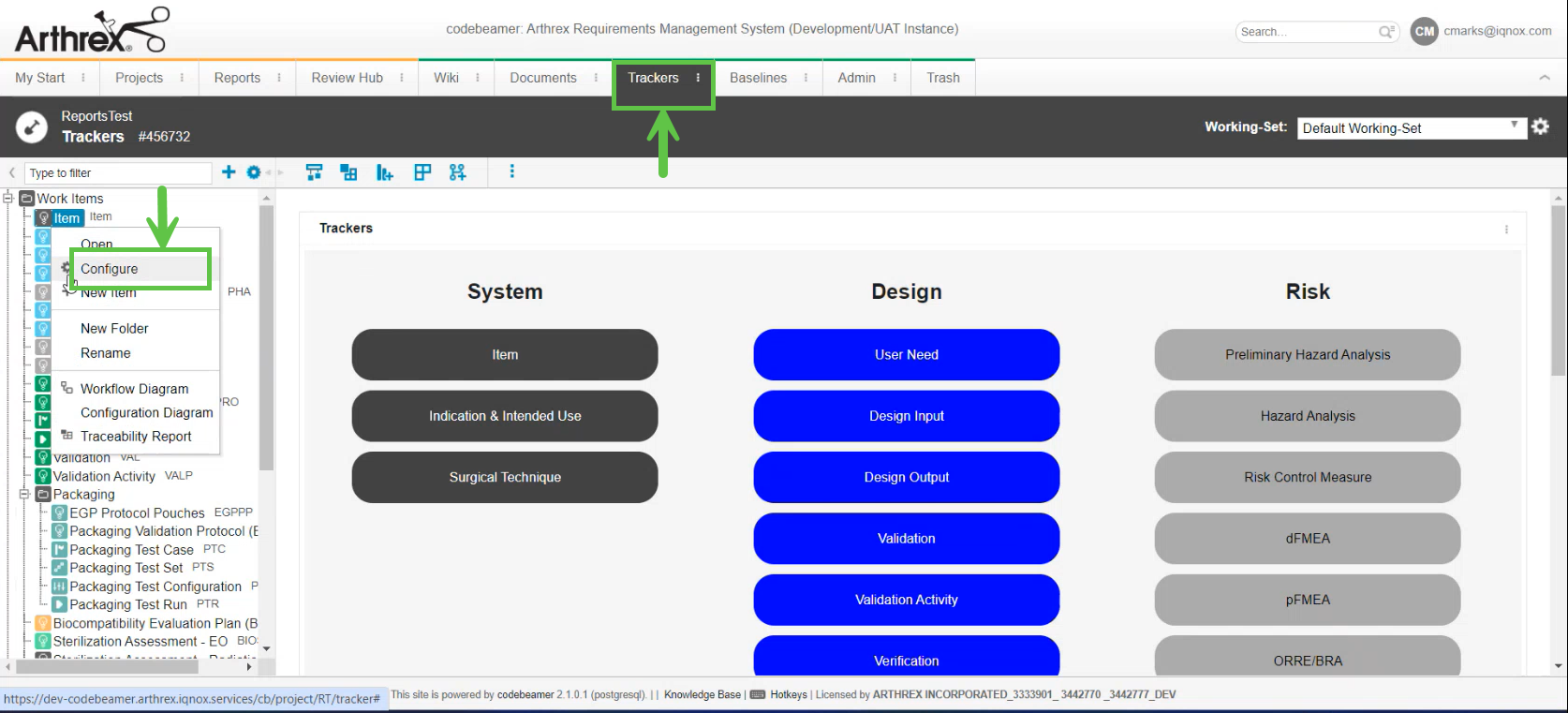
It will open a new window for that tracker.
Go to the Fields tab and check Show hidden fields
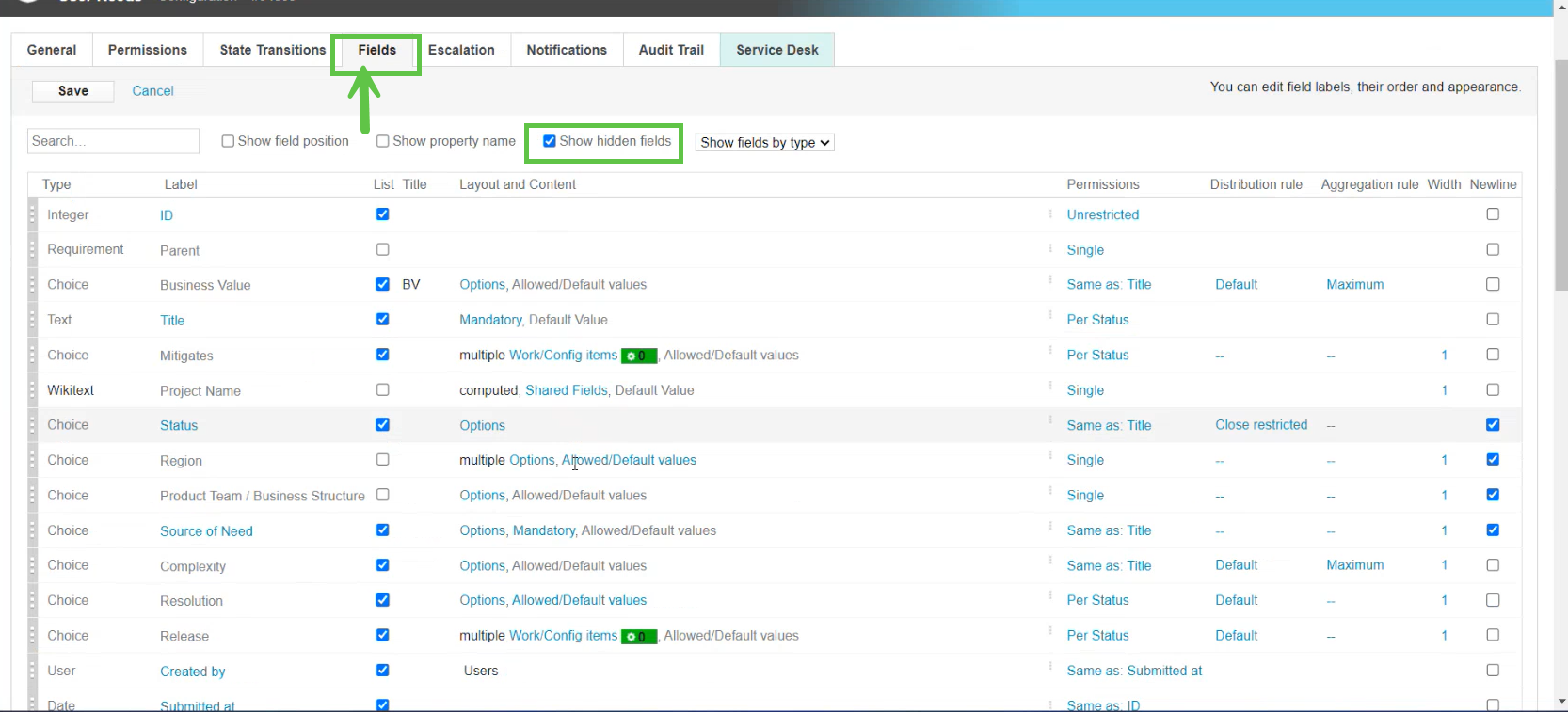
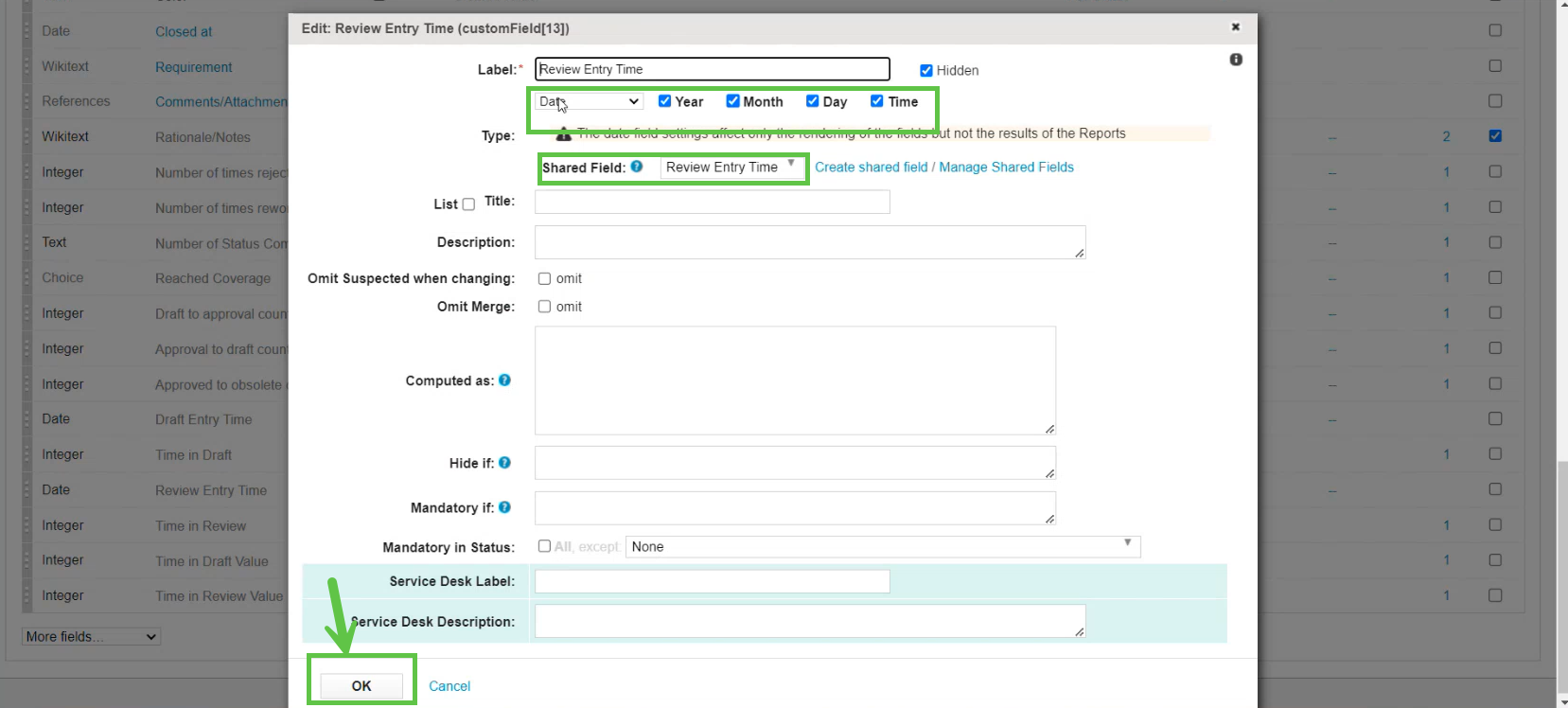
Click on the Review Entry Time.
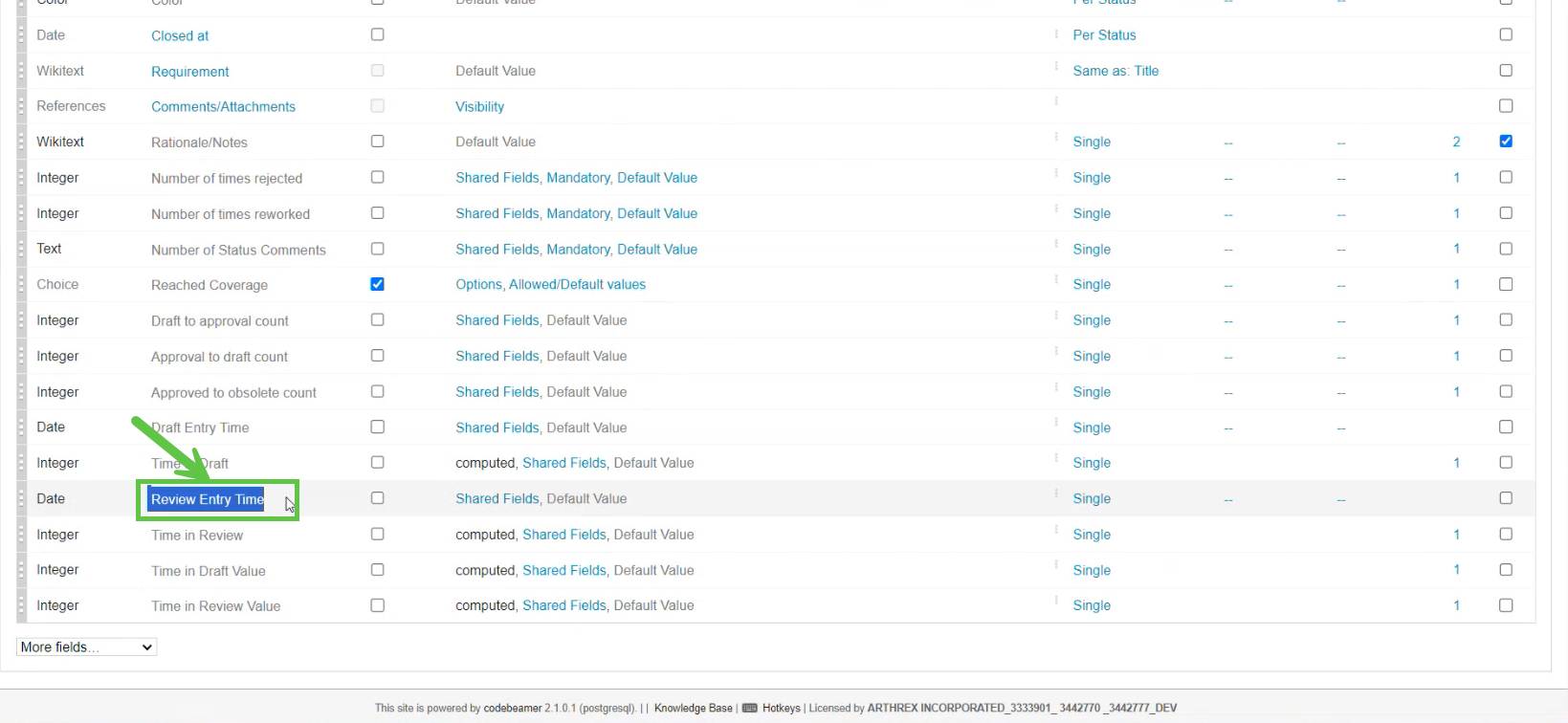
It will open a new window.
Review Entry Time should be of type Date field and Shared Field should be Review Entry Time and click OK.
Go to the tab State Transitions.
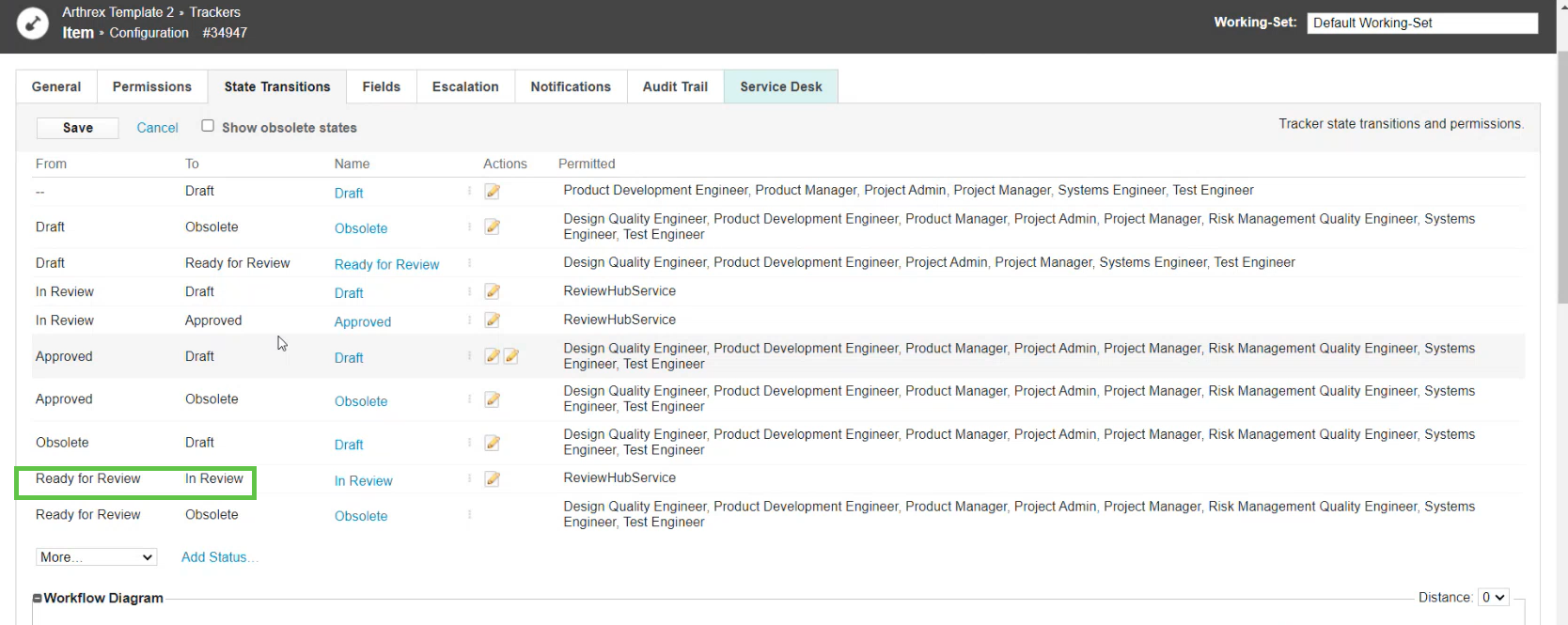
For the state transition "Ready for Review" to "In Review", click on the Action button and set the value of Review Entry Time to Now and then click OK.
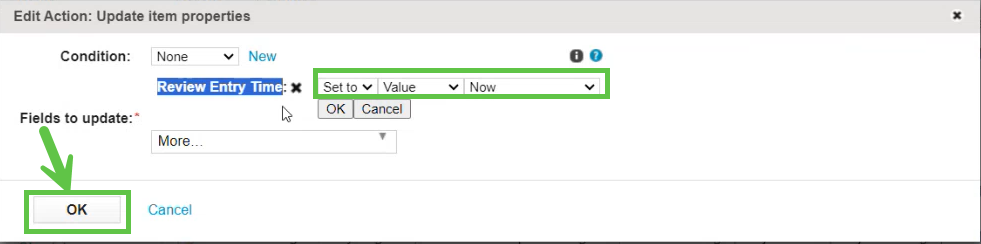
Repeat step 8 for every row where there is an 'In Review' transition present. In this case, In Review only comes once in the To column. Therefore, we don't need to repeat the steps further.
Again go to the Fields tab and click on Time in Review Value.
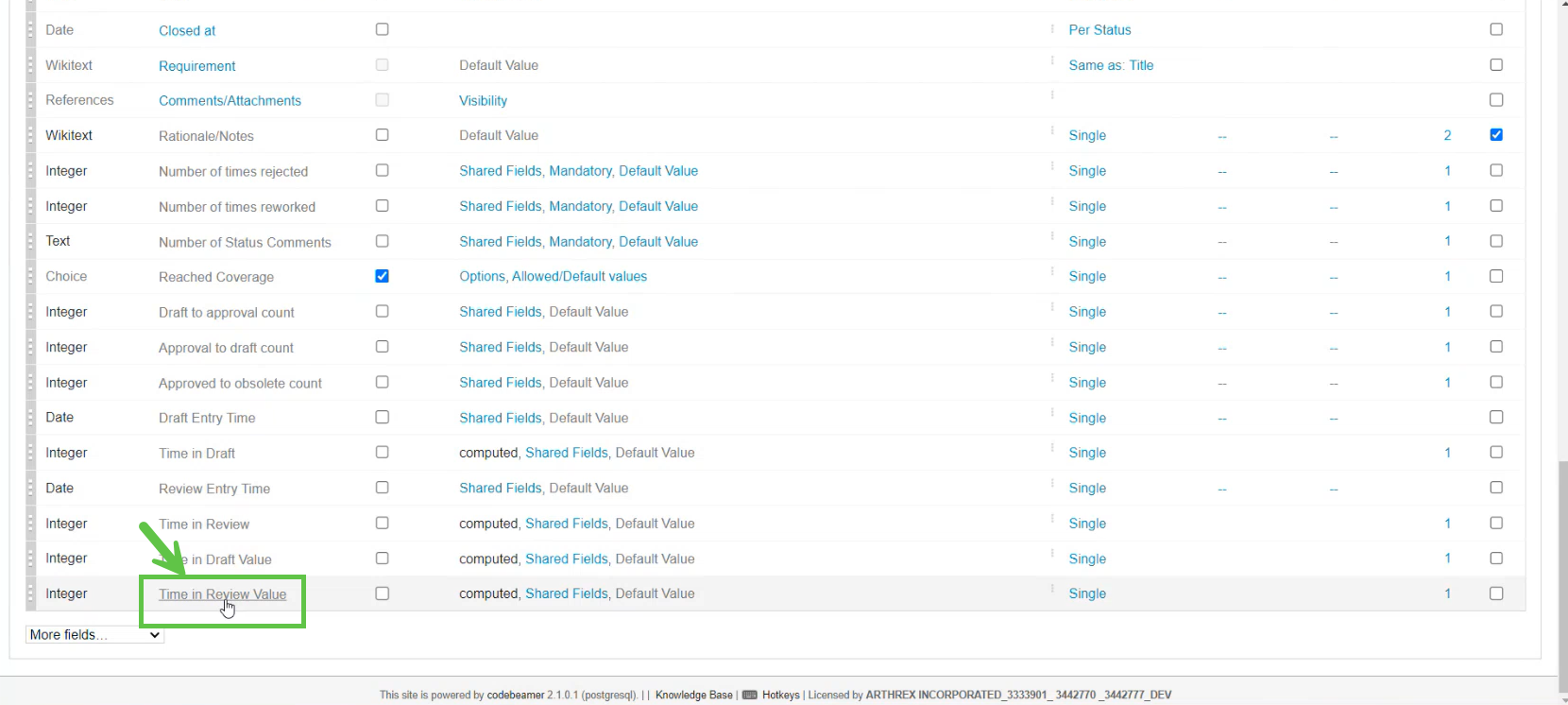
Write appropriate code in the field Computed as and click OK.
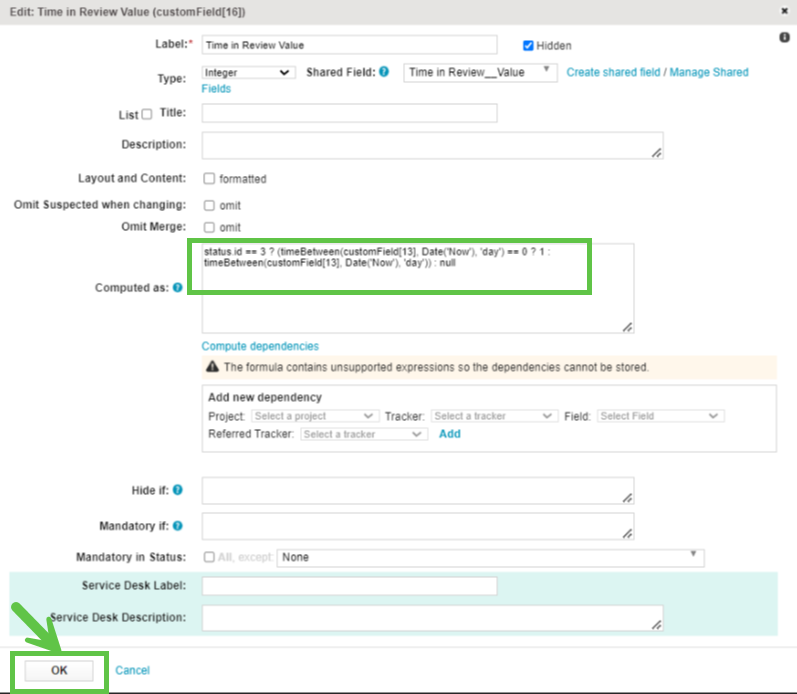
Again go to the Fields tab and click on Time in Review.
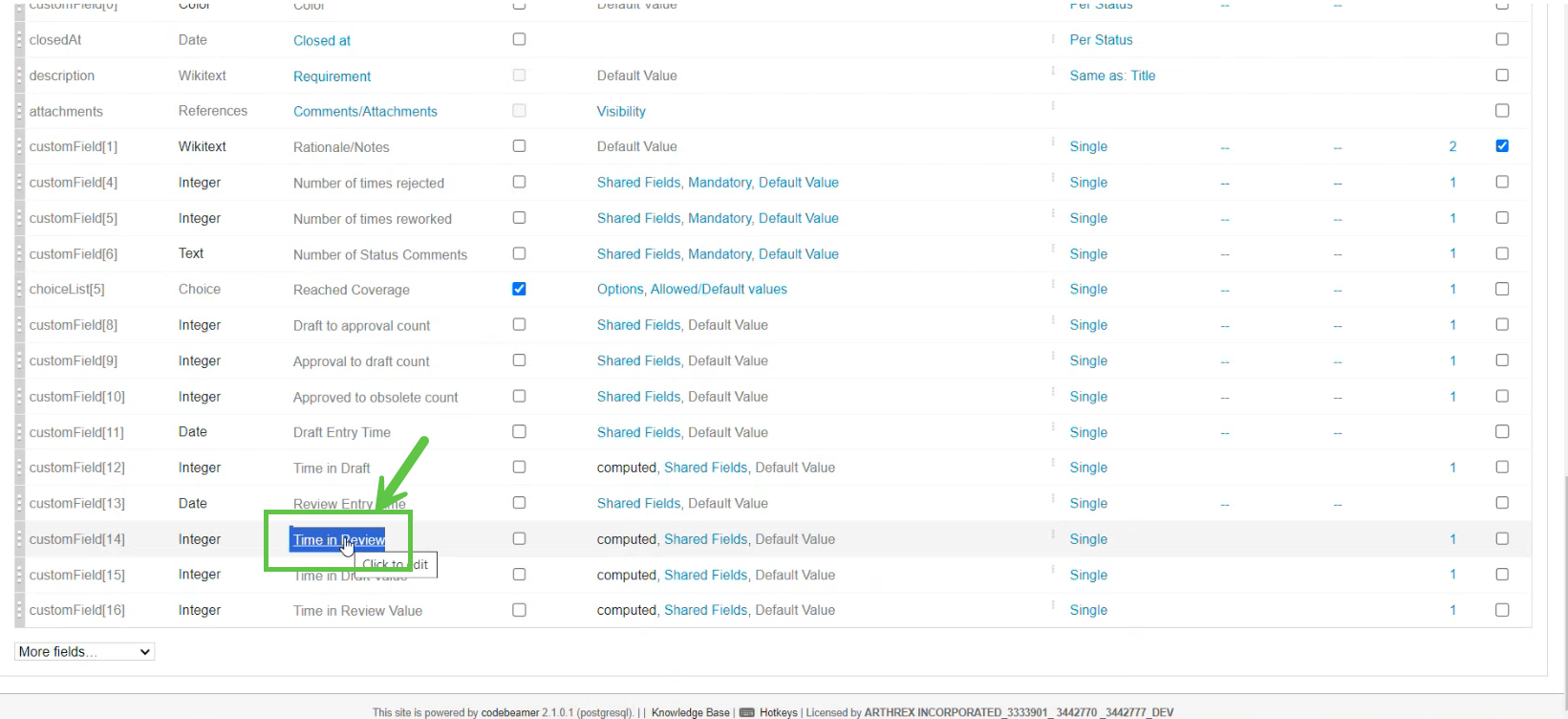
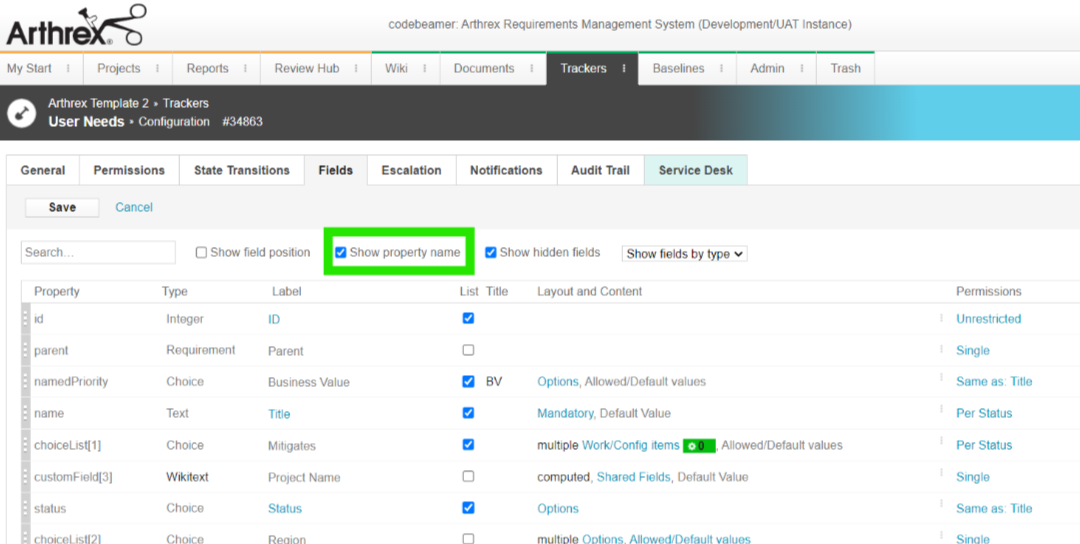
Click on the Show property name text box to show the Property column. Make note of the property name for Time in Review Value field.
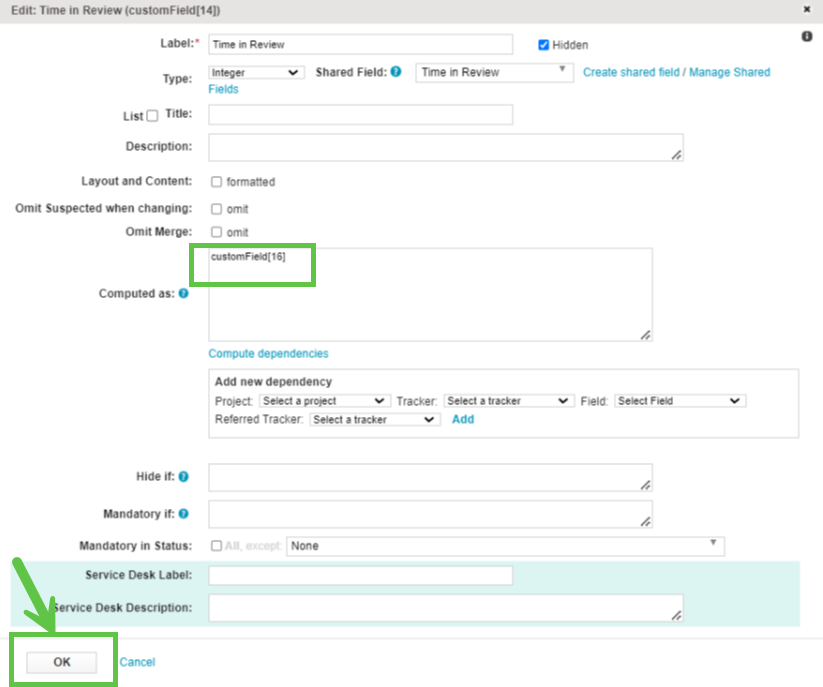
Open the settings for the Time in Review field and add the property name for Time in Review Value in the Computed as a text box. We are doing this because fields with "Computed as" settings that use any time-based functions will not show properly in the reports tab. We want to pick the property name from the field Time in Review Value and in this case, the property name for Time in Review Value is customField[16] (it may be a different property name in any other given tracker) and then click OK.
Repeat steps 3 to 14 for every tracker under the Tracker tab for which you want to see the Time in Review report.
Go to the Projects tab and select the Project "Arthrex Template 2".
Go to the Trackers tab.
Select a tracker under the Trackers tab. Right-click on one of the trackers and select Configure.
It will open a new window for that tracker.
Go to the Fields tab and check Show hidden fields
Click on the Review Entry Time.
It will open a new window.
Review Entry Time should be of type Date field and Shared Field should be Review Entry Time and click OK.
Go to the tab State Transitions.
For the state transition "Ready for Review" to "In Review", click on the Action button and set the value of Review Entry Time to Now and then click OK.
Repeat step 8 for every row where there is an 'In Review' transition present. In this case, In Review only comes once in the To column. Therefore, we don't need to repeat the steps further.
Again go to the Fields tab and click on Time in Review Value.
Write appropriate code in the field Computed as and click OK.
Again go to the Fields tab and click on Time in Review.
Click on the Show property name text box to show the Property column. Make note of the property name for Time in Review Value field.
Open the settings for the Time in Review field and add the property name for Time in Review Value in the Computed as a text box. We are doing this because fields with "Computed as" settings that use any time-based functions will not show properly in the reports tab. We want to pick the property name from the field Time in Review Value and in this case, the property name for Time in Review Value is customField[16] (it may be a different property name in any other given tracker) and then click OK.
Repeat steps 3 to 14 for every tracker under the Tracker tab for which you want to see the Time in Review report.
Steps to take the export of the report: -
Once the report is created, click on the Export to Office button.
Select Simple Excel Export and click Export.
The Excel file will be downloaded to your Downloads folder.
Related Articles
Time in Draft Report (UC - 6)
This can be used to build metadata to calculate the length of time an item stays in the Draft state for Time in Draft Report. Used By: - System Administrator General User Steps to run the Length of Time in Draft Report: - Login to Arthrex using the ...Content Rejection Report (UC -1)
UC-1 Content Rejection Report This can be used to build metadata to track the number of iterations for the Content Rejection Report. Used By: - System Administrator General User Steps to run the Content Rejection Report: - Login to Arthrex using the ...Draft to Approval Report (UC - 2)
This can be used to build metadata to calculate the Length of Time from Draft to Approval for the Length of Time Draft to Approval Report. Used By: - System Administrator General User Steps to run the Draft to Approval Report: - Login to Arthrex ...Review Hub
This process aims to automate placing items into their "Approved or Draft" state upon review completion for the Streamlined Review Process. These items must be in the "In Review" state when users send items to Review HUB for review. In the Review Hub ...Item Reuse Report (UC - 5)
This can be used to build metadata to calculate the number of times an item is reused for the Item Reuse Report. This is used to identify how many times an item has been copied or how many duplicates of an item exist in the Codebeamer. Used By: - ...